Stock control in a Workshop is crucial for ensuring smooth operations, reducing costs and maximizing efficiency.
Within our Stock Management system in Vehocheck you will find Stores >Suppliers>Products>Stock Levels
You first need to build your Dashboard:
Stock control > Stock Management > Dashboard
You will be working from right to left.
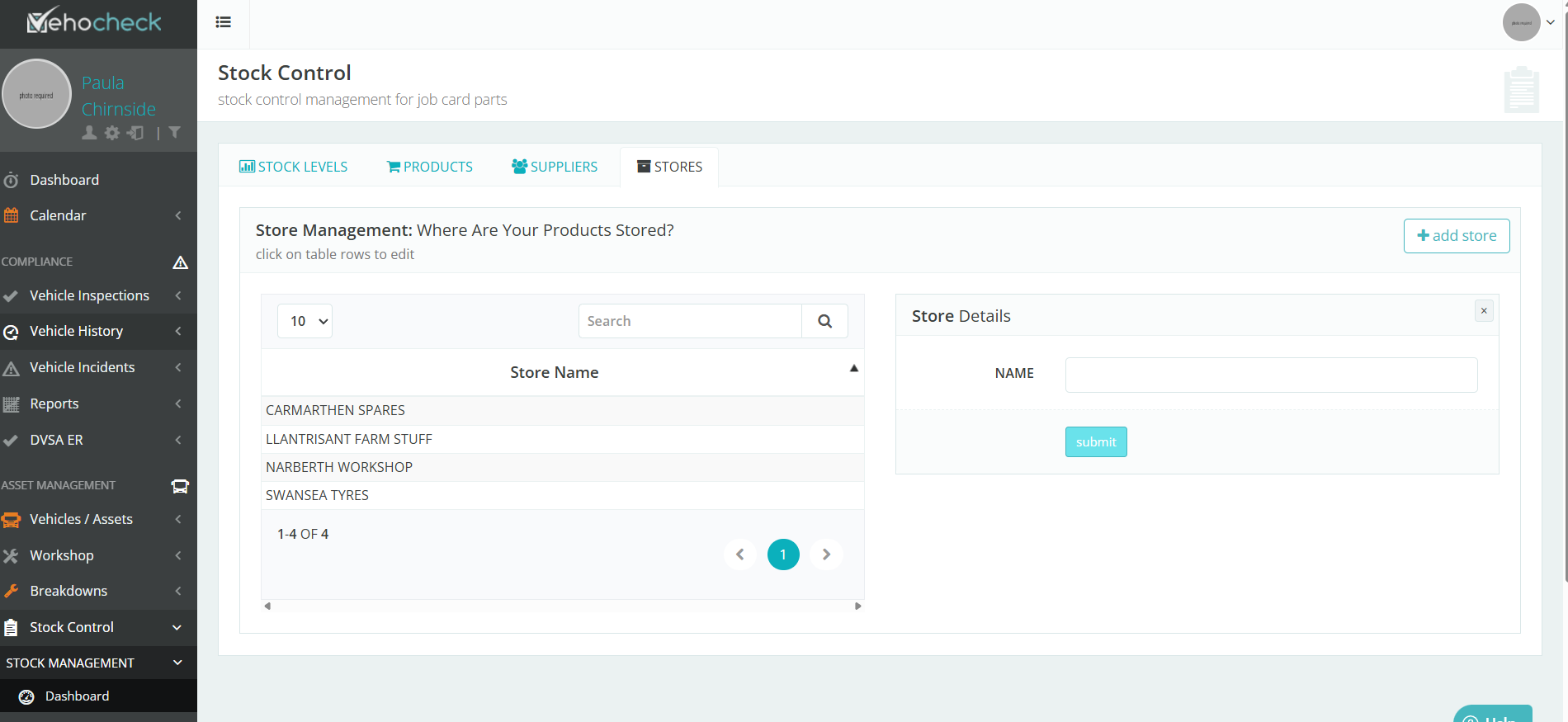
Starting with STORES "this is where your Products are Stored"
- +add store
- submit
You can add as many stores as you need, your stores will show under the Store Name on the left .
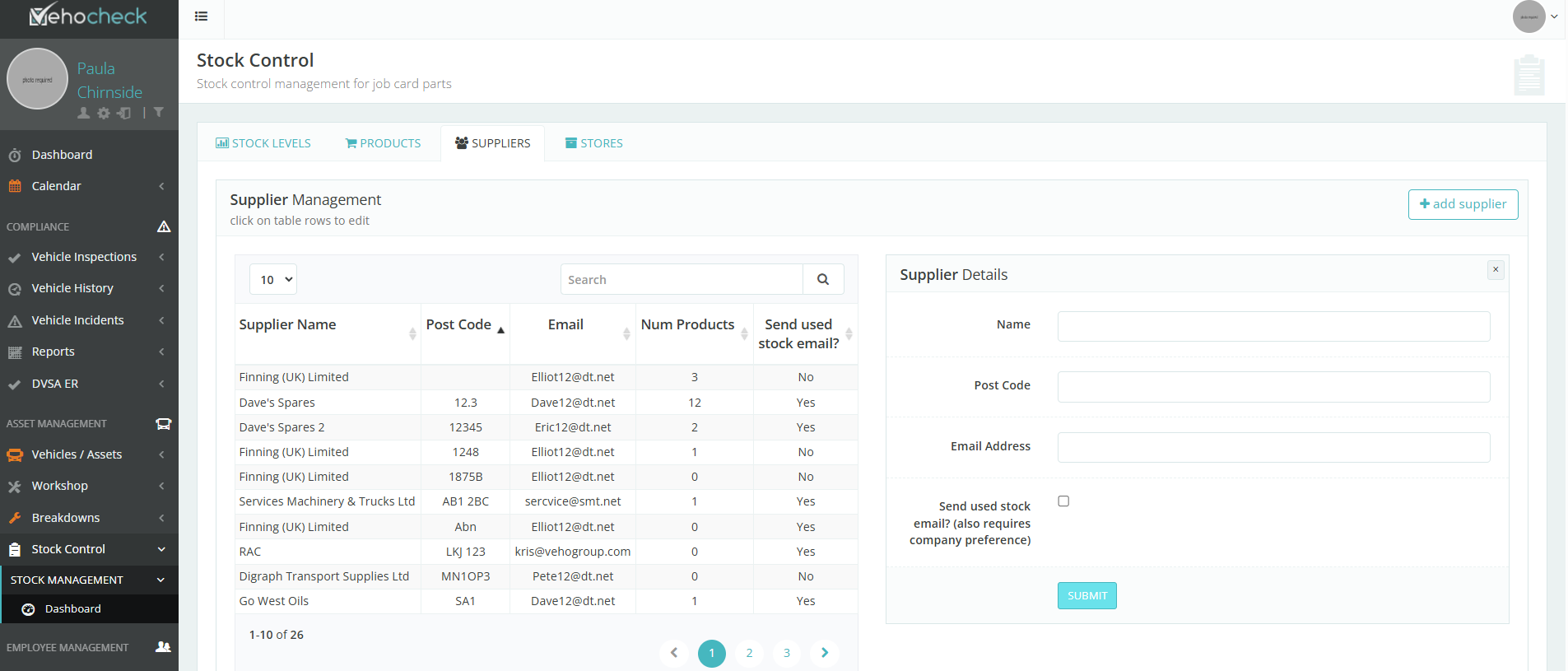
Then add your SUPPLIERS
- +add supplier
- submit
You can choose to email your supplier as your stock is used.
Now onto your PRODUCTS
- +add product
- complete all fields
- Name and Reference - This can be the same if you want
- Product Supplier - You will find a list of your suppliers in the dropdown - choose accordingly
- Product Type - There is a fuzzy search , either type in e.g. Tyres or scroll through
- Submit
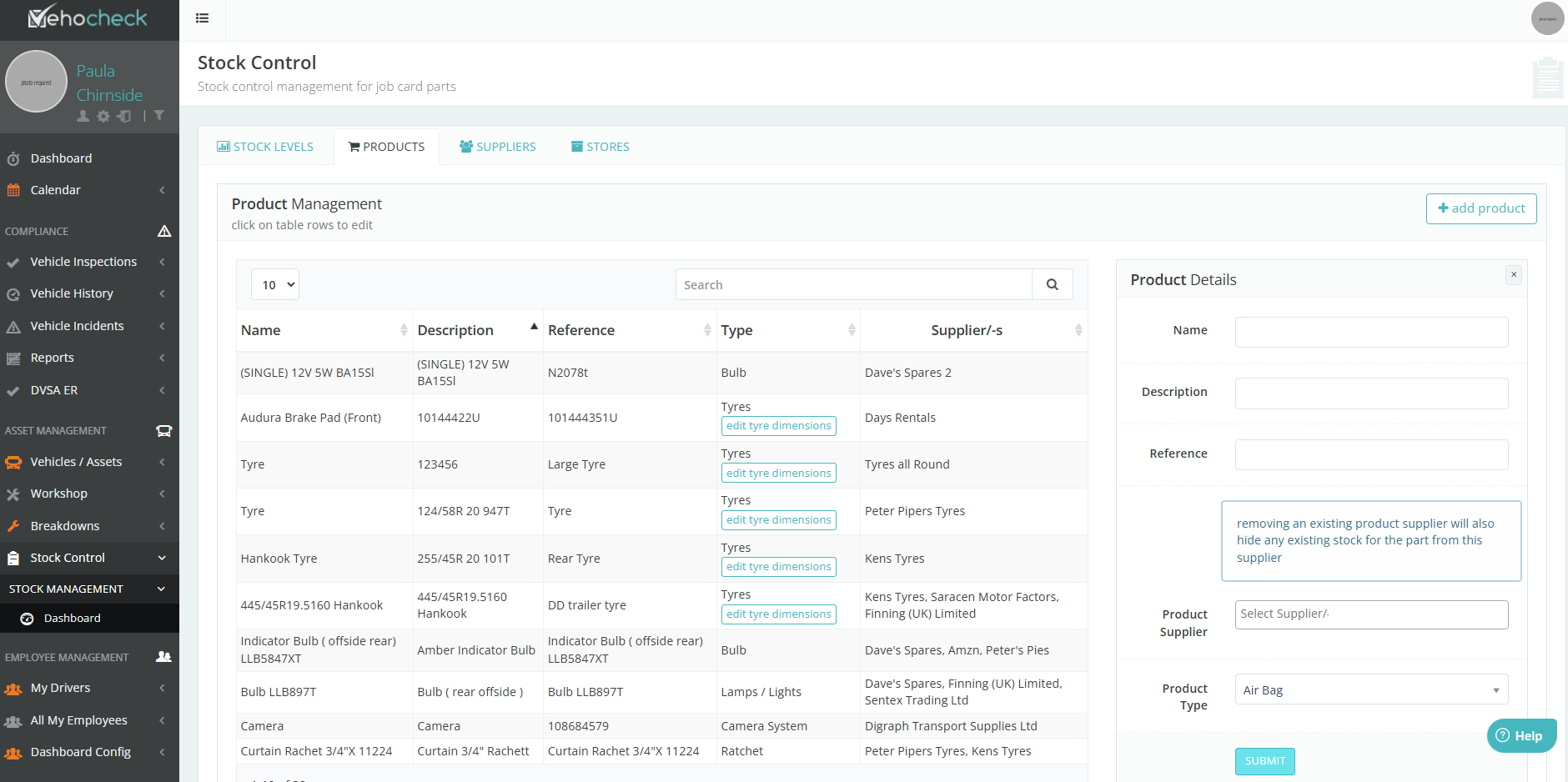
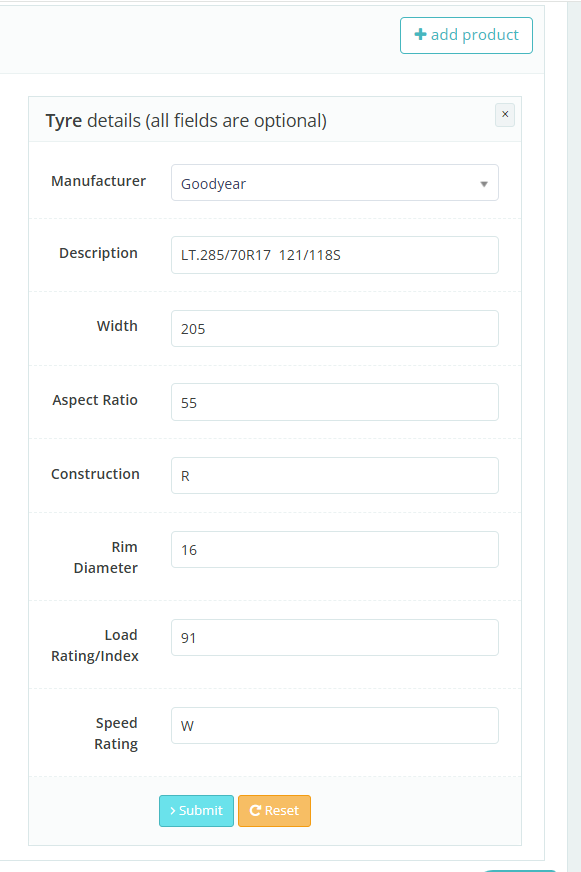
If you have added a Tyre you will notice that you are able to (edit tyre dimensions)

Click >edit tyre dimension> complete fields
The final section is STOCK LEVELS
Once you have added your products you will see them here in Stock Level Management
You will notice that Qty.in Stock is 0
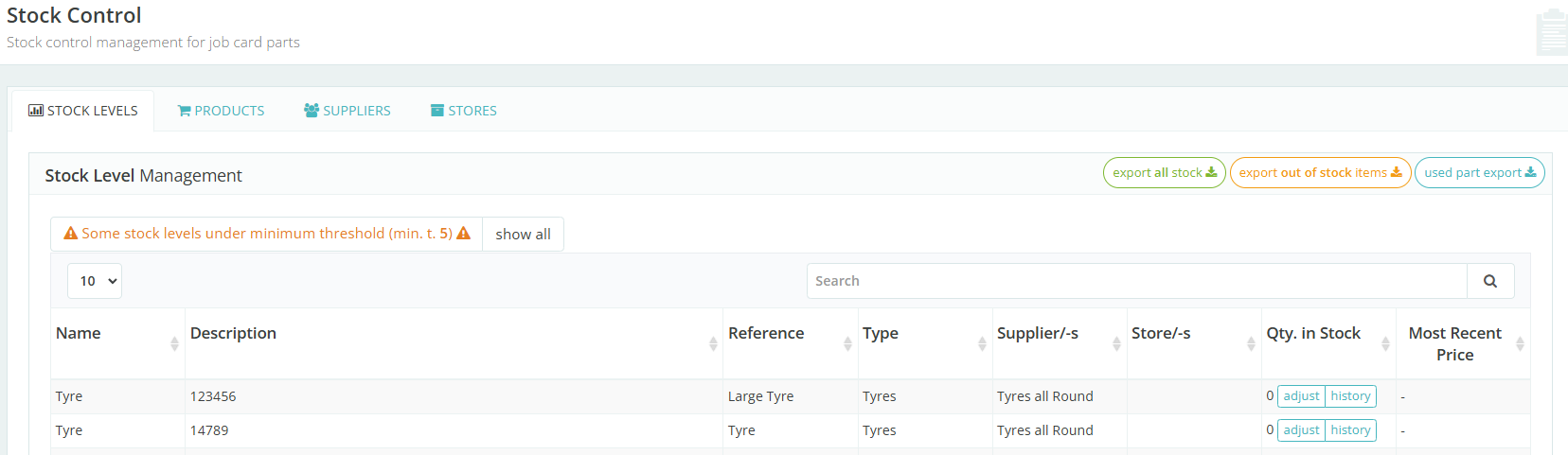
Click on adjust
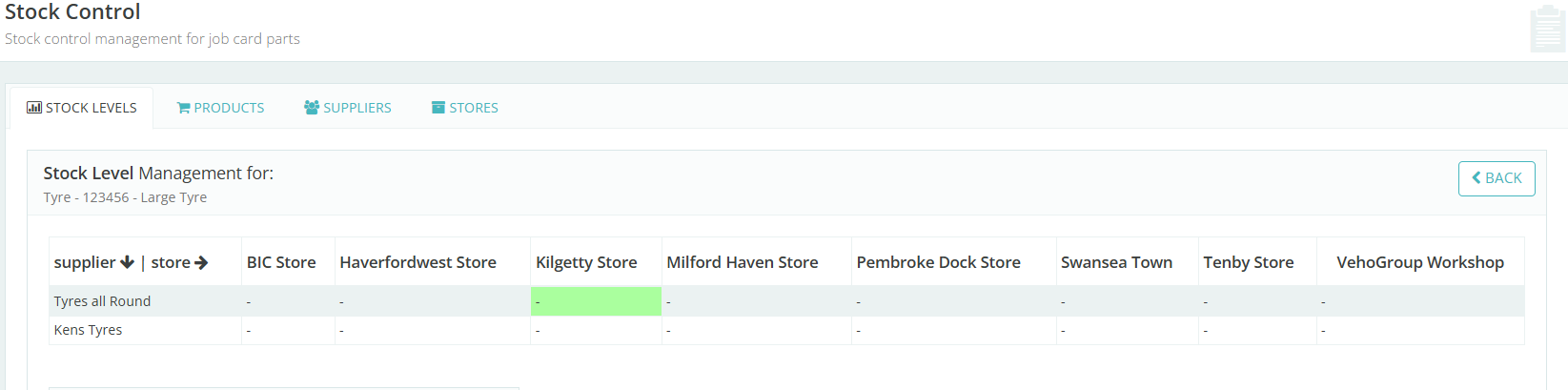
Supplier (will be listed down the left side)
- to add an additional supplier click in the dropdown field -allocate selected supplier
Store's (will be listed across the top)
- hover below the list of stores (this will turn GREEN) to choose the store you require
- e.g. Kilgetty Store
- fill in the fields
- e.g. Kilgetty Store
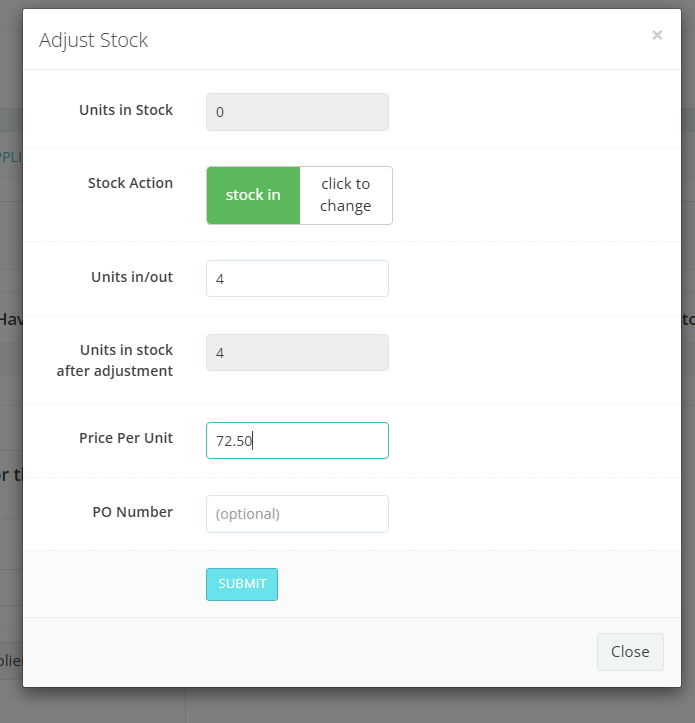
Once you have submit you will see your stock level within the Stores for the Suppliers

A catalogue of all your Stock will show here, you can filter by Part e.g. Tyre
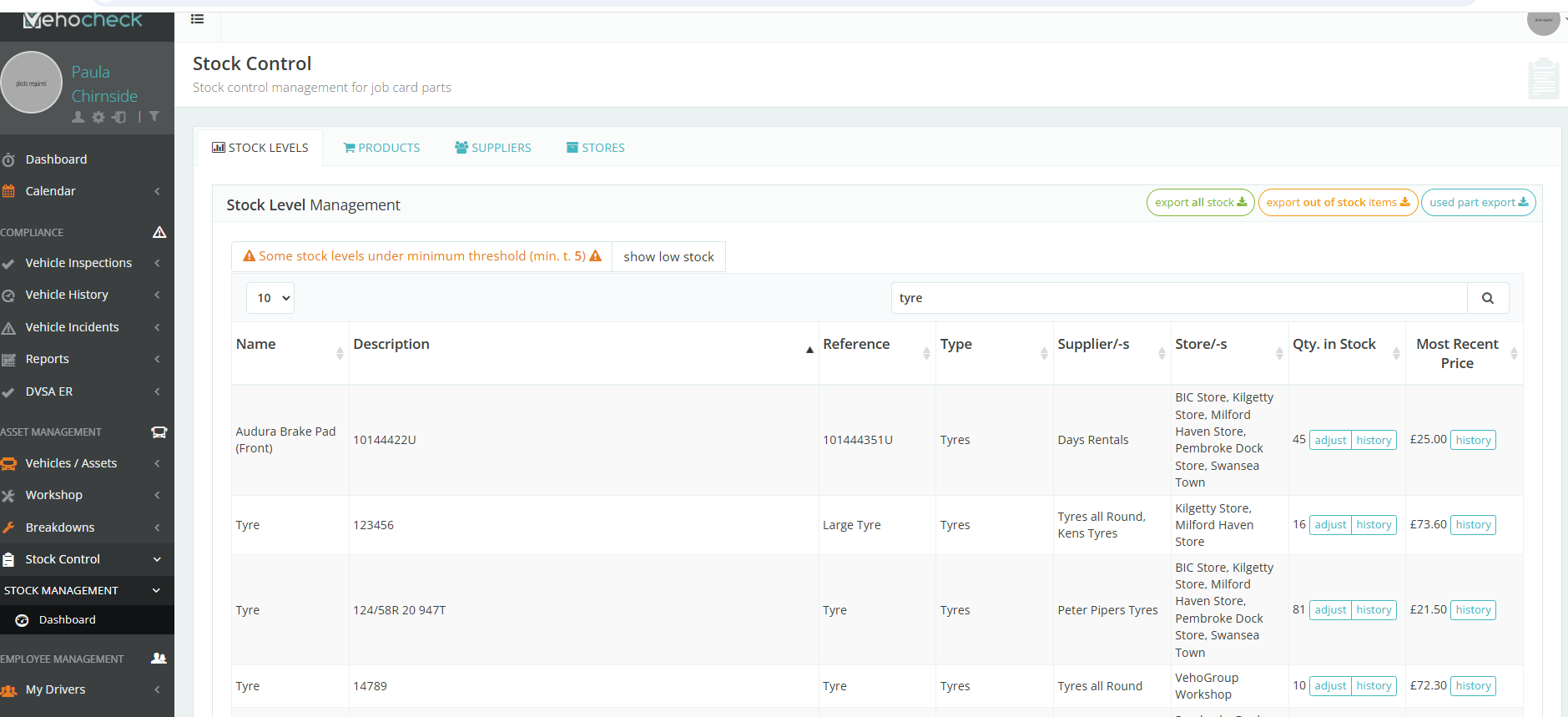
As you are using or replacing your stock you will be able to see the Quantity in Stock or Most Recent Price
Qty.in Stock > Adjust
- Adjust - stock in / out
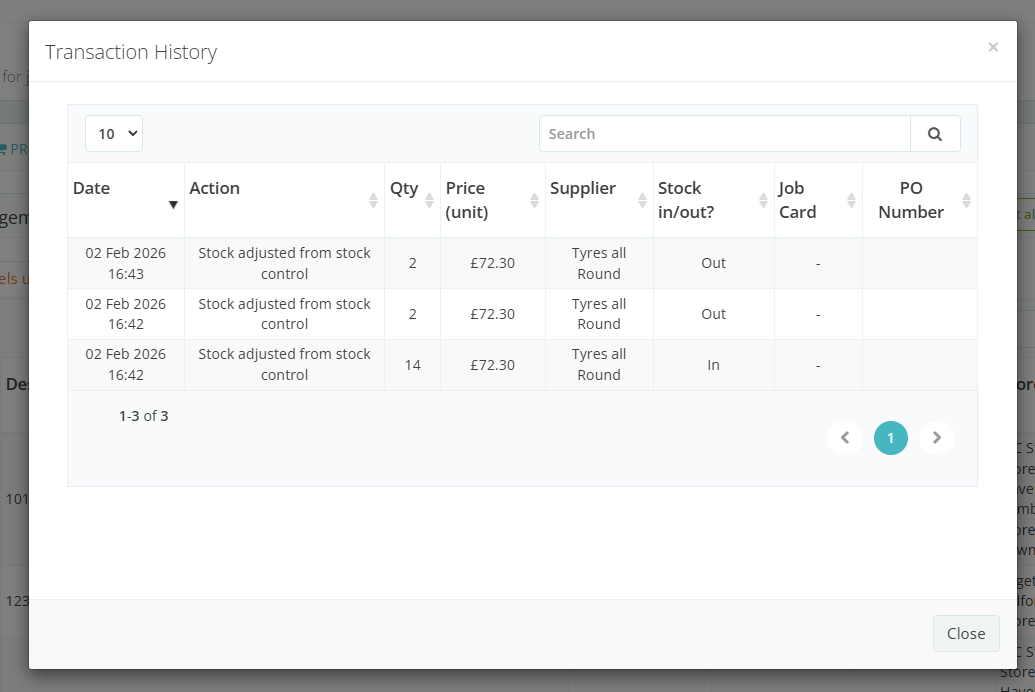
- History - show you Transaction History Price and how many stock in/out
Was this article helpful?
That’s Great!
Thank you for your feedback
Sorry! We couldn't be helpful
Thank you for your feedback
Feedback sent
We appreciate your effort and will try to fix the article