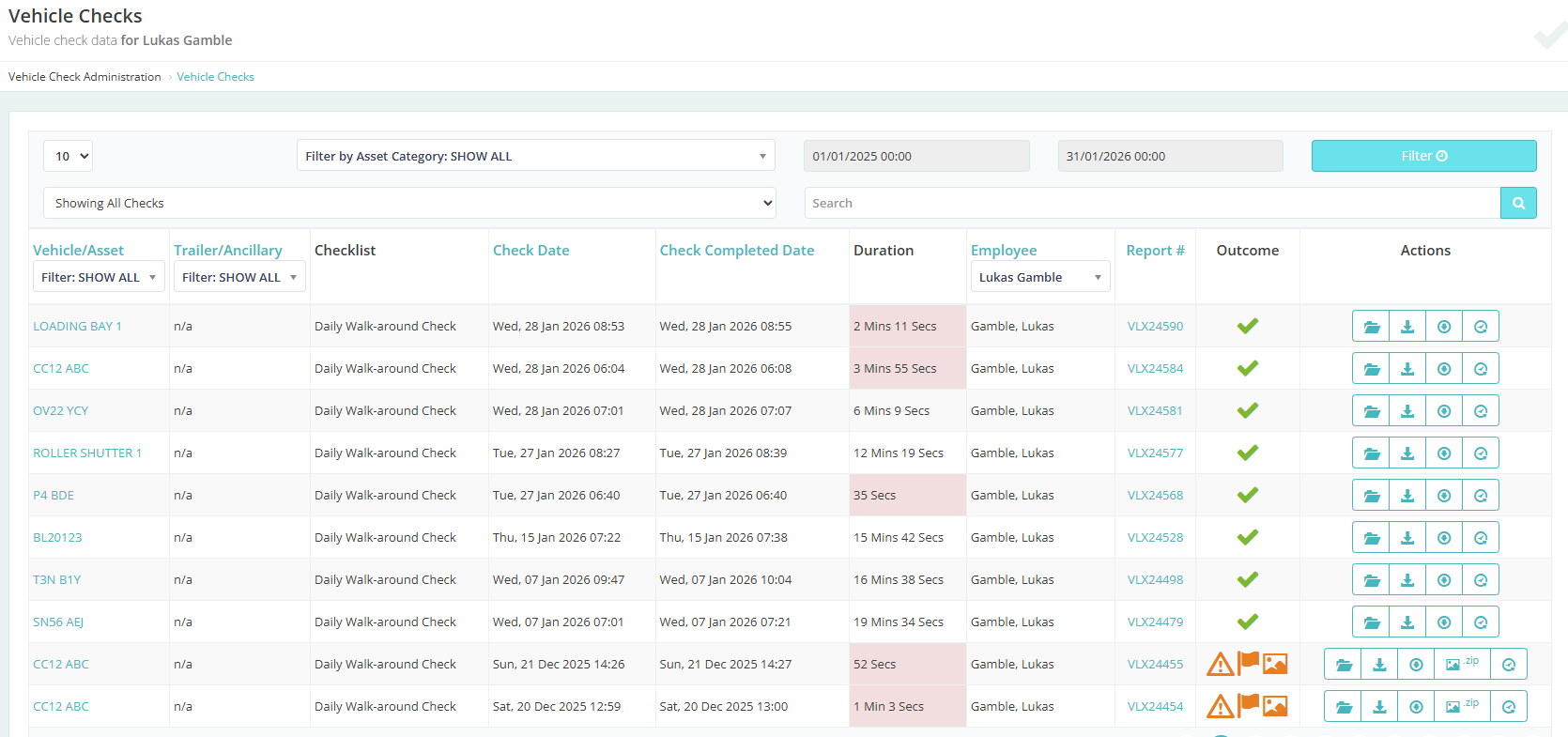
Setting this preference will highlight the times your Drivers are taking to do their checks, e.g. we have it set to 10min so anything under that will be highlighted in red.
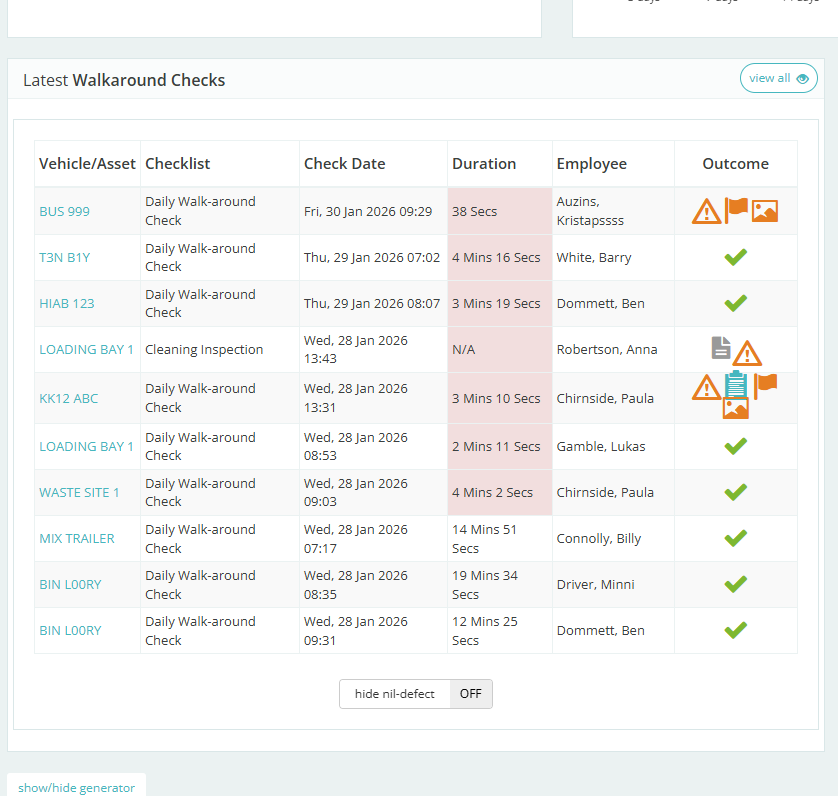
To set this as a preference go to:
From the desktop, select Company Details>Configuration> Set Preferences
You will see 4 sections -Vehocheck App ,Notifications ,Dashboard & Statbox Views
- in Dashboard:
- Tick the box - Flag Checks Under a Certain Time Threshold
Update company preferences
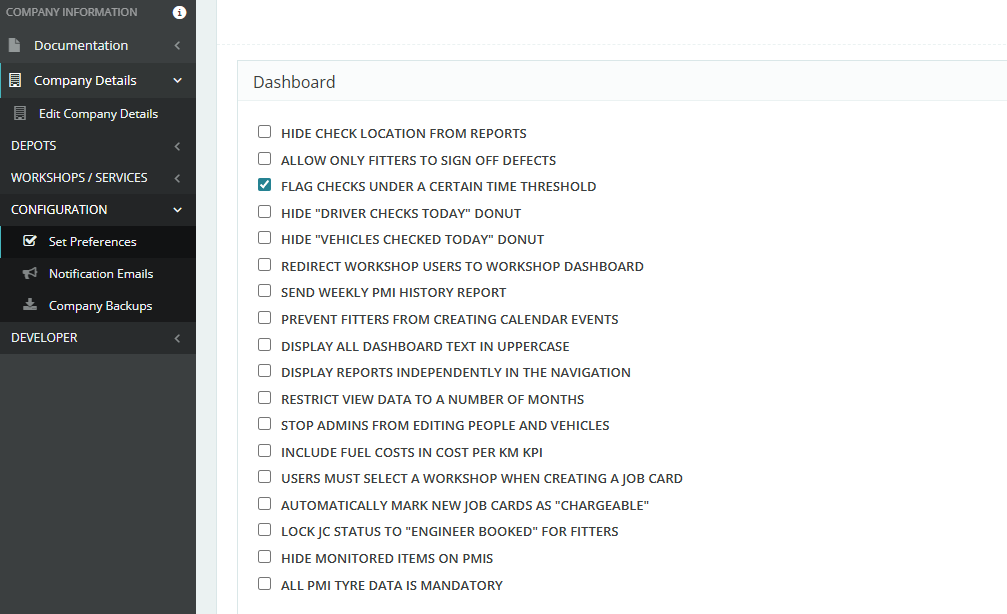
It is worth looking through the list to see if there are any other preferences you would like to be added to your Dashboard.
Now go into Vehicle Inspections
Walkaround Checks
- Check Durations
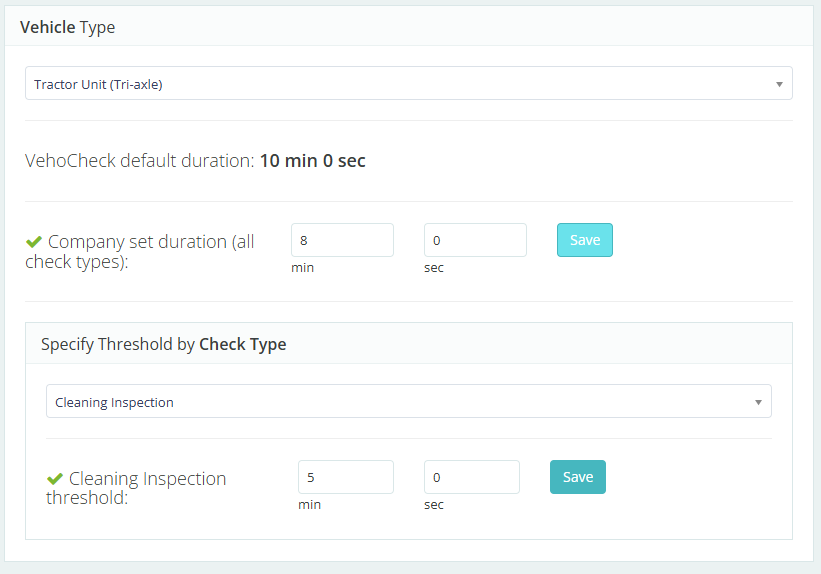
- Choose the Vehicle Type
you can either set to all check types or choose different Inspection threshold for different checks e.g. cleaning Inspection.
- Set duration
- Save
You need to do this for each asset
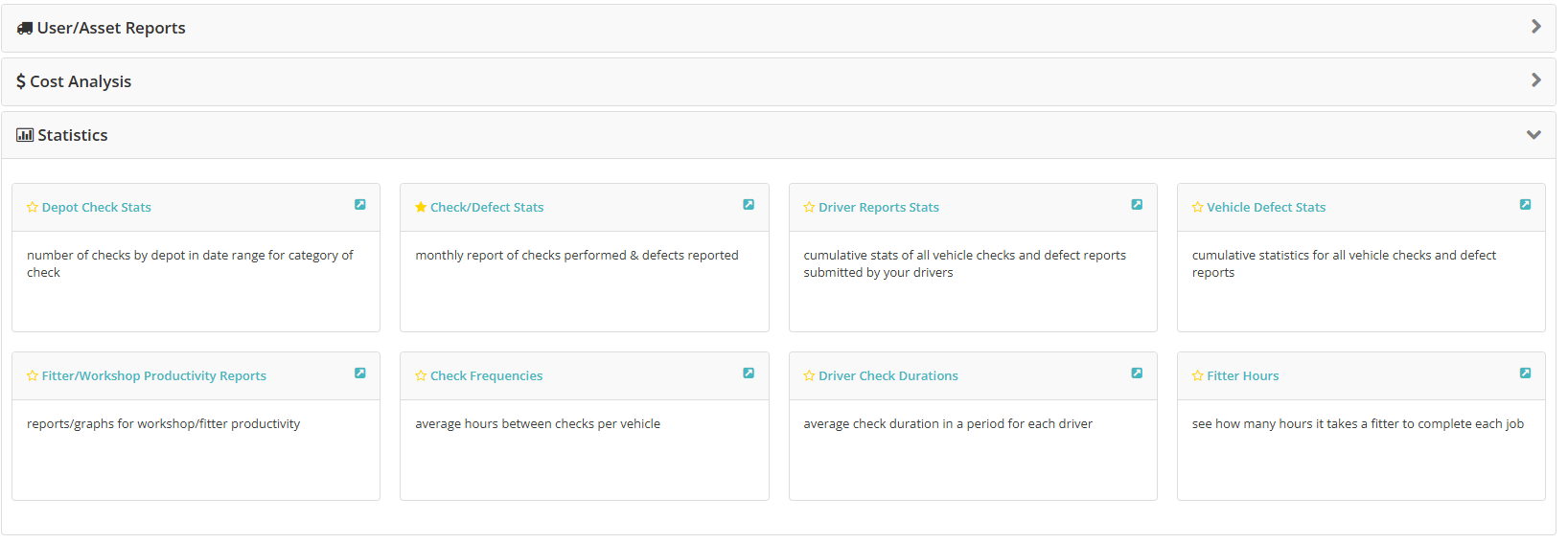
You can see your Driver average check lengths and export the information if you feel necessary.
Dashboard > Reports > Reports Dashboard
Statistics
- Driver Check Durations
You can filter by date range
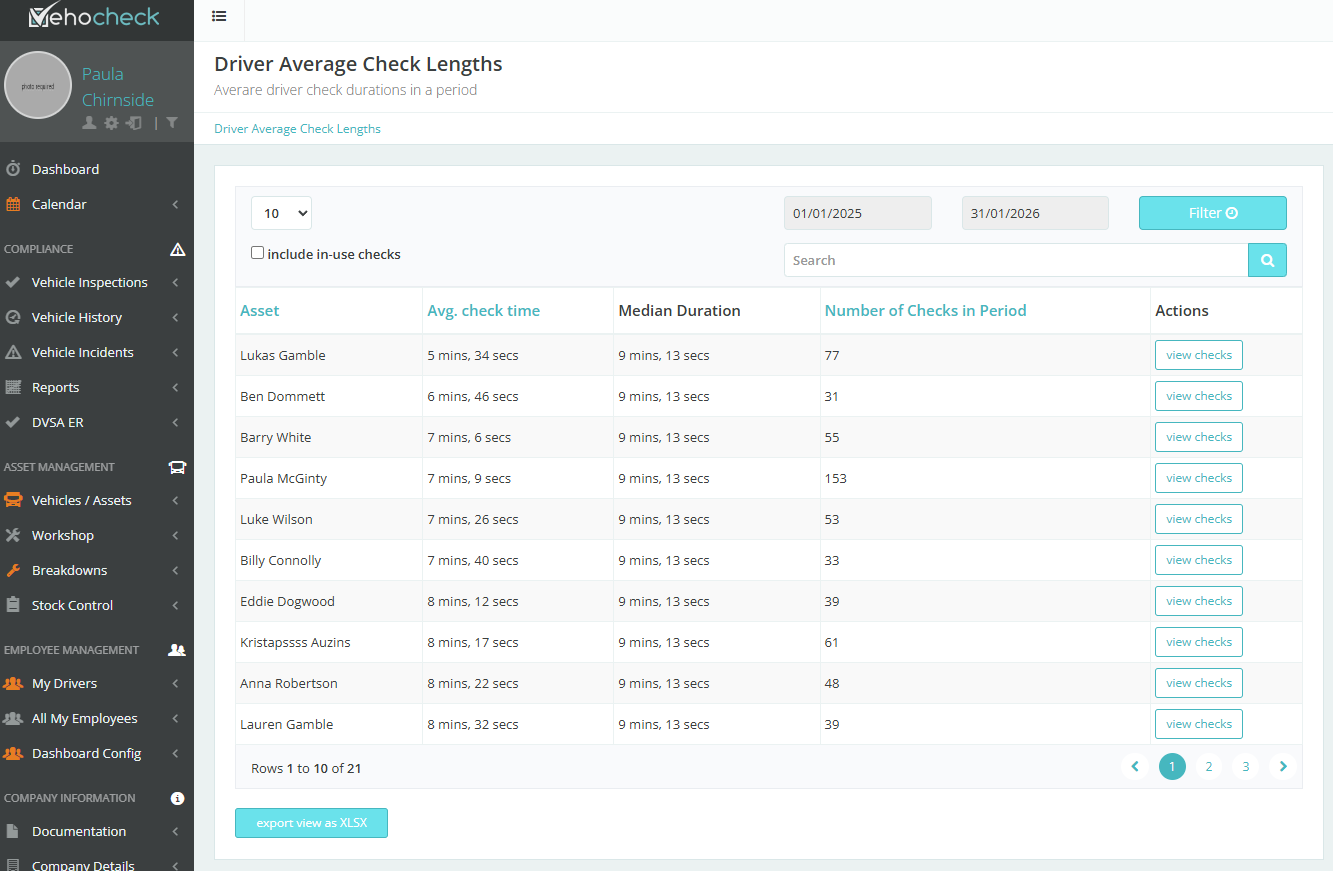
This report will show you how many times a drive has done checks and their average check time.
By clicking View Checks > it will bring up all their checks
Was this article helpful?
That’s Great!
Thank you for your feedback
Sorry! We couldn't be helpful
Thank you for your feedback
Feedback sent
We appreciate your effort and will try to fix the article